• Blog
    • Latest Posts
    • News
    • Featured Videos
    • Deals
  • About
  • Camera User Groups
    • ARRI
      • User Videos
      • News & Deals
      • Related Posts
    • Blackmagic
      • User Videos
      • News & Deals
      • Related Posts
    • Canon
      • Canon Cinema EOS
        • User Videos
        • News & Deals
        • Related Posts
      • Canon 5D Mark III/IV
        • User Videos
        • News & Deals
        • Related Posts
      • Canon Rebel/70D/80D
        • User Videos
        • News & Deals
        • Related Posts
    • Panasonic
      • Panasonic GH5
        • User Videos
        • News & Deals
        • Related Posts
      • Panasonic GH4
        • User Videos
        • News & Deals
        • Related Posts
      • Panasonic GH3
        • User Videos
        • News & Deals
        • Related Posts
    • Sony
      • Sony a7-Series
        • User Videos
        • News & Deals
        • Related Posts
      • Sony CineAlta
        • User Videos
        • News & Deals
        • Related Posts
      • Sony PXW-FS7
        • User Videos
        • News & Deals
        • Related Posts
      • Sony PXW-FS5
        • User Videos
        • News & Deals
        • Related Posts
      • Sony NEX-FS700
        • User Videos
        • News & Deals
        • Related Posts
      • Sony NEX-FS100
        • User Videos
        • News & Deals
        • Related Posts
      • Sony NEX-VG10/20/30
        • User Videos
        • News & Deals
        • Related Posts
    • Z CAM
      • User Videos
      • News & Deals
      • Related Posts
    • RigShots
  • VR
    • Daily Digest
    • Videos IN VR
    • Videos ON VR
    • Latest Posts
    • News & Deals
  • DOCOFILM
    • Newsletter
    • Latest News
    • Featured Videos
  • Essays on Film
  • Adobe Premiere Tips
Menu
  • Blog
    • Latest Posts
    • News
    • Featured Videos
    • Deals
  • About
  • Camera User Groups
    • ARRI
      • User Videos
      • News & Deals
      • Related Posts
    • Blackmagic
      • User Videos
      • News & Deals
      • Related Posts
    • Canon
      • Canon Cinema EOS
        • User Videos
        • News & Deals
        • Related Posts
      • Canon 5D Mark III/IV
        • User Videos
        • News & Deals
        • Related Posts
      • Canon Rebel/70D/80D
        • User Videos
        • News & Deals
        • Related Posts
    • Panasonic
      • Panasonic GH5
        • User Videos
        • News & Deals
        • Related Posts
      • Panasonic GH4
        • User Videos
        • News & Deals
        • Related Posts
      • Panasonic GH3
        • User Videos
        • News & Deals
        • Related Posts
    • Sony
      • Sony a7-Series
        • User Videos
        • News & Deals
        • Related Posts
      • Sony CineAlta
        • User Videos
        • News & Deals
        • Related Posts
      • Sony PXW-FS7
        • User Videos
        • News & Deals
        • Related Posts
      • Sony PXW-FS5
        • User Videos
        • News & Deals
        • Related Posts
      • Sony NEX-FS700
        • User Videos
        • News & Deals
        • Related Posts
      • Sony NEX-FS100
        • User Videos
        • News & Deals
        • Related Posts
      • Sony NEX-VG10/20/30
        • User Videos
        • News & Deals
        • Related Posts
    • Z CAM
      • User Videos
      • News & Deals
      • Related Posts
    • RigShots
  • VR
    • Daily Digest
    • Videos IN VR
    • Videos ON VR
    • Latest Posts
    • News & Deals
  • DOCOFILM
    • Newsletter
    • Latest News
    • Featured Videos
  • Essays on Film
  • Adobe Premiere Tips

Category: FocusPulling Original

12 January 2018

Sony a7R III: Interactive Menu Guide, Samples and Review

Written by Paul Moon

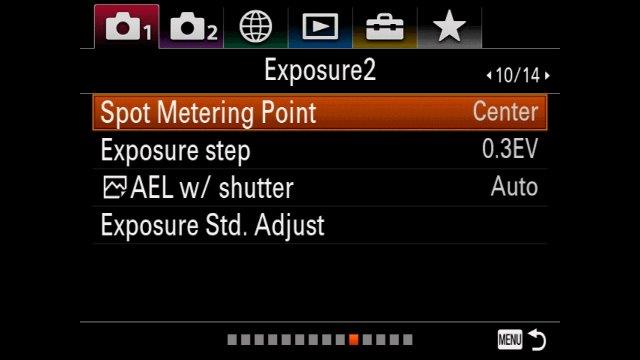
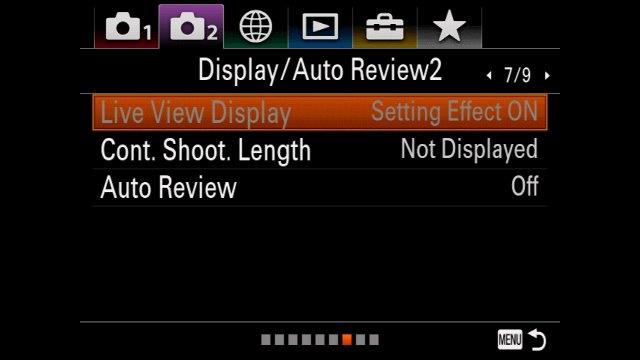
The headlining video for this page runs 1¾ hours. It is the most comprehensive guide to the Sony a7R III menus available anywhere. For your convenience, the below interactive guide breaks this video down into organized sections, taking you directly to a discrete explanation of whatever menu page you’re interested in. Just click it, and a video will play back with a detailed explanation. Use the top index to skip around between menu tabs and pages.

I got inspired to throw this together after creating a menu guide for the Sony RX0 recently. Now, after lessons learned from an ongoing trans-media creative project of mine (www.95thesesfilm.com/concordance), combined with a full test run using the Sony a7R III to create www.scroogeopera.com last month, I’ve combined sample footage from that project with observations about this camera (triggered by explaining its menus), resulting in a hybrid resource of: product tutorial, review, and footage samples.


SONY a7R III MENU INDEX

tab1 : PAGE   1    2    3    4    5    6    7    8    9    10   11   12   13   14
tab2 : PAGE   1    2    3    4    5    6    7    8    9
tab3 : PAGE   1
tab4 : PAGE   1
tab5 : PAGE   1    2    3    4    5    6    7
tab6 : PAGE   1


TAB 1/PAGE 1 — manual and automatic selection between full-frame mode, versus APS-C/Super 35mm “crop” mode:

video
play-sharp-fill
01:42:29
video
play-sharp-fill
01:42:29

TAB 1/PAGE 2 — on leaving things alone at the acquisition stage:

video
play-sharp-fill
01:42:29
video
play-sharp-fill
01:42:29

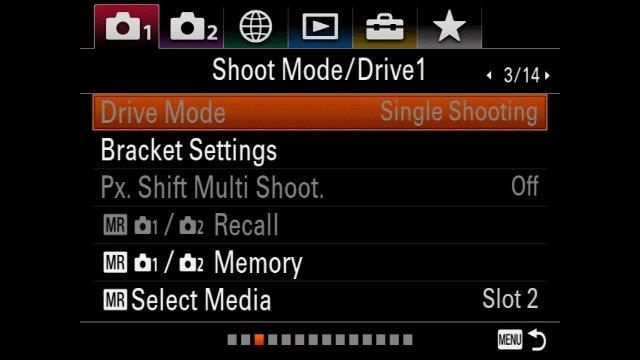
TAB 1/PAGE 3 — dual memory card slots:
video
play-sharp-fill
01:42:29
video
play-sharp-fill
01:42:29

TAB 1/PAGE 4 — (not relevant):

video
play-sharp-fill
01:42:29
video
play-sharp-fill
01:42:29

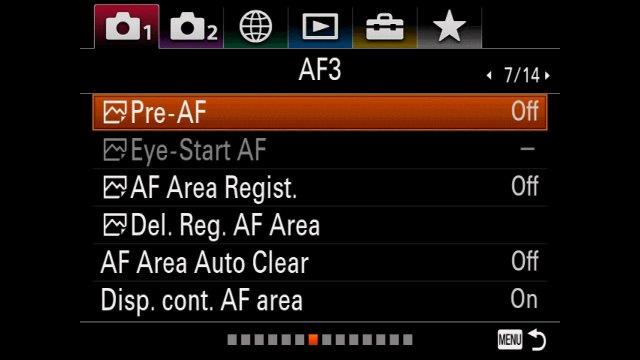
TAB 1/PAGE 5 — auto-focus modes:

video
play-sharp-fill
01:42:29
video
play-sharp-fill
01:42:29

TAB 1/PAGE 6 — auto-focus face priority:

video
play-sharp-fill
01:42:29
video
play-sharp-fill
01:42:29

TAB 1/PAGE 7 — (not relevant):

video
play-sharp-fill
01:42:29
video
play-sharp-fill
01:42:29

TAB 1/PAGE 8 — (not relevant):

video
play-sharp-fill
01:42:29
video
play-sharp-fill
01:42:29

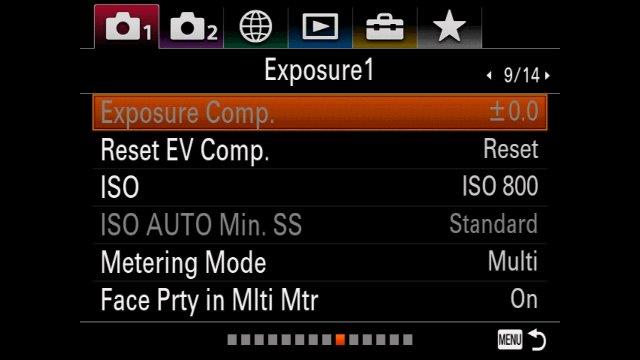
TAB 1/PAGE 9 — ISO/gain, arbitrary minimum ISO in S-Log:
video
play-sharp-fill
01:42:29
video
play-sharp-fill
01:42:29

TAB 1/PAGE 10 — (not relevant):

video
play-sharp-fill
01:42:29
video
play-sharp-fill
01:42:29

TAB 1/PAGE 11 — (not relevant):

video
play-sharp-fill
01:42:29
video
play-sharp-fill
01:42:29

TAB 1/PAGE 12 — white balance, picture profiles/S-Log:

video
play-sharp-fill
01:42:29
video
play-sharp-fill
01:42:29

TAB 1/PAGE 13 — peaking:

video
play-sharp-fill
01:42:29
video
play-sharp-fill
01:42:29

TAB 1/PAGE 14 — (not relevant):

video
play-sharp-fill
01:42:29
video
play-sharp-fill
01:42:29

TAB 2/PAGE 1 — movie file formats, fast-slow motion, proxy recording:

video
play-sharp-fill
01:42:29
video
play-sharp-fill
01:42:29

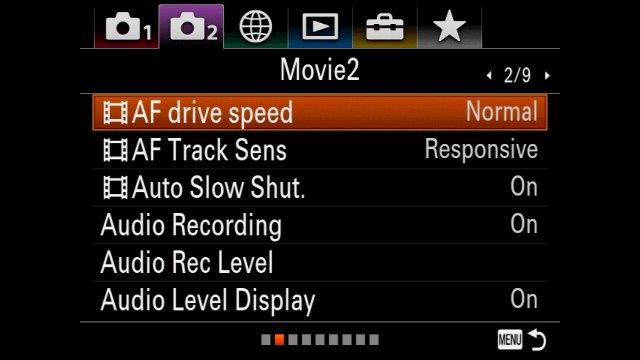
TAB 2/PAGE 2 — auto-focus responsiveness, audio recording:
video
play-sharp-fill
01:42:29
video
play-sharp-fill
01:42:29

TAB 2/PAGE 3 — wind noise reduction, display markers:

video
play-sharp-fill
01:42:29
video
play-sharp-fill
01:42:29

TAB 2/PAGE 4 — accommodating non-native manual lenses, image stabilization:
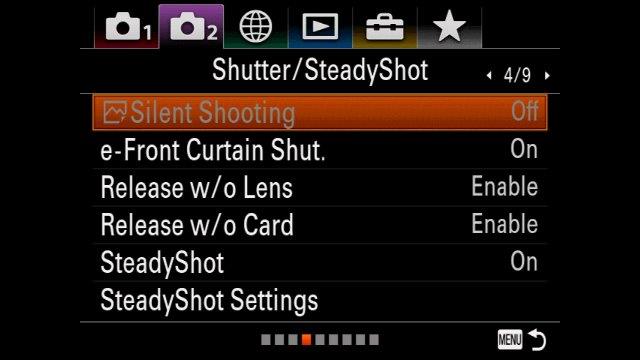
video
play-sharp-fill
01:42:29
video
play-sharp-fill
01:42:29

TAB 2/PAGE 5 — zoom and ClearImage Zoom:

video
play-sharp-fill
01:42:29
video
play-sharp-fill
01:42:29

TAB 2/PAGE 6 — on-screen display, zebras, rule-of-thirds grid line:
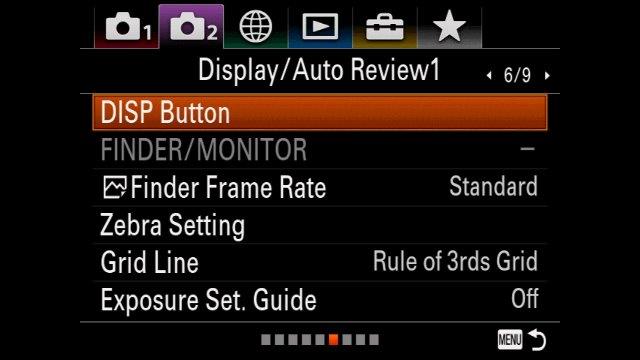
video
play-sharp-fill
01:42:29
video
play-sharp-fill
01:42:29

TAB 2/PAGE 7 — (not relevant):

video
play-sharp-fill
01:42:29
video
play-sharp-fill
01:42:29

TAB 2/PAGE 8 — custom keys and menus (and avoiding the temptation to over-customize):
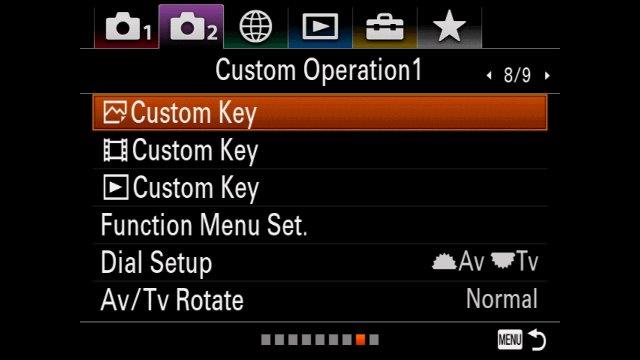
video
play-sharp-fill
01:42:29
video
play-sharp-fill
01:42:29

TAB 2/PAGE 9 — turning off the beeps:
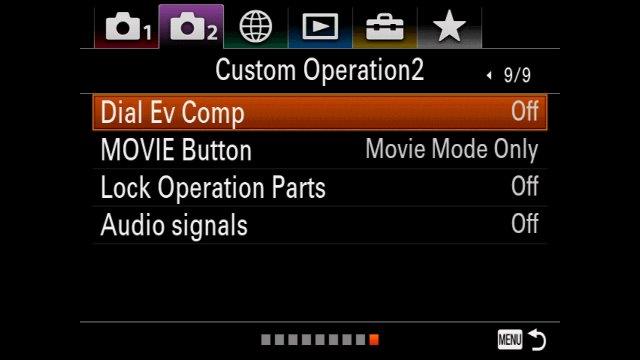
video
play-sharp-fill
01:42:29
video
play-sharp-fill
01:42:29

TAB 3 — viewing/controlling from smartphone or tablet, absence of applets:

video
play-sharp-fill
01:42:29
video
play-sharp-fill
01:42:29

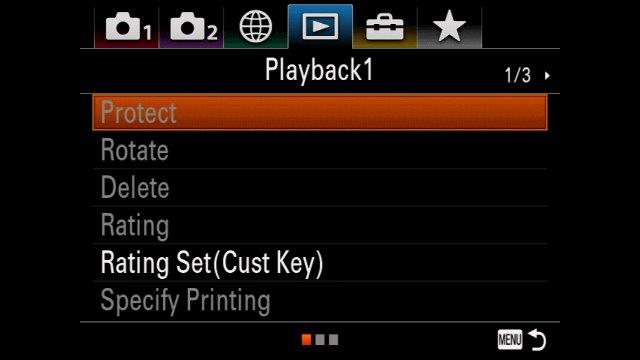
TAB 4 — playback:

video
play-sharp-fill
01:42:29
video
play-sharp-fill
01:42:29

TAB 5/PAGE 1 — gamma display assist:

video
play-sharp-fill
01:42:29
video
play-sharp-fill
01:42:29

TAB 5/PAGE 2 — overheating, world camera, cleaning the sensor:

video
play-sharp-fill
01:42:29
video
play-sharp-fill
01:42:29

TAB 5/PAGE 3 — touchscreen, say-no-to-timecode, wired remote control:

video
play-sharp-fill
01:42:29
video
play-sharp-fill
01:42:29

TAB 5/PAGE 4 — HDMI, USB options, tethering:

video
play-sharp-fill
01:42:29
video
play-sharp-fill
01:42:29

TAB 5/PAGE 5 — file naming:

video
play-sharp-fill
01:42:29
video
play-sharp-fill
01:42:29

TAB 5/PAGE 6 — redundant versus overflow usage of two memory card slots:

video
play-sharp-fill
01:42:29
video
play-sharp-fill
01:42:29

TAB 5/PAGE 7 — firmware version, both camera and lens:

video
play-sharp-fill
01:42:29
video
play-sharp-fill
01:42:29

TAB 6 — on being your own star:
video
play-sharp-fill
01:42:29
video
play-sharp-fill
01:42:29

The Sony a7R III is available via B&H for under $3.2k by clicking here. I hope this resource helped! Please share it with other Sony a7R III users.
January 12, 2018 FocusPulling Original, FocusPulling Original Video, Sony a7S 2 Comments
27 October 2017

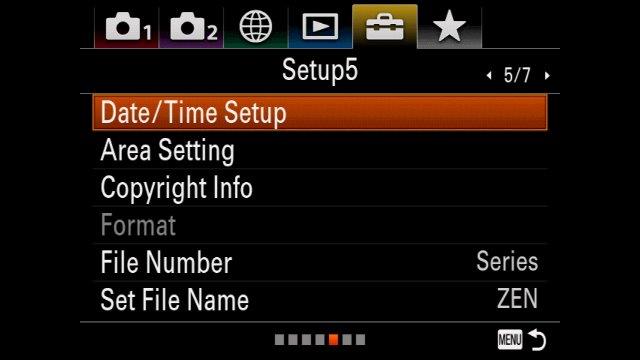
Sony RX0: Review, Tests and Menu Guide

Written by Paul Moon

There’s a durable adage that won’t ever go away, no matter what the future brings: “Your best camera is the one you’ve got with you.”

Buried in this week’s hysterical attention to Sony’s new a7R III cash cow — offering a tiny bump up from their already overpriced and mediocre a7R II — this sad little RX0 is having a hard time. So I thought I’d send the little thing some love with this thorough review, combined with test footage and comparisons, plus a guide to its menus. That video is embedded into this post from YouTube. (Sorry for the crap audio in the menu guide — never again!)

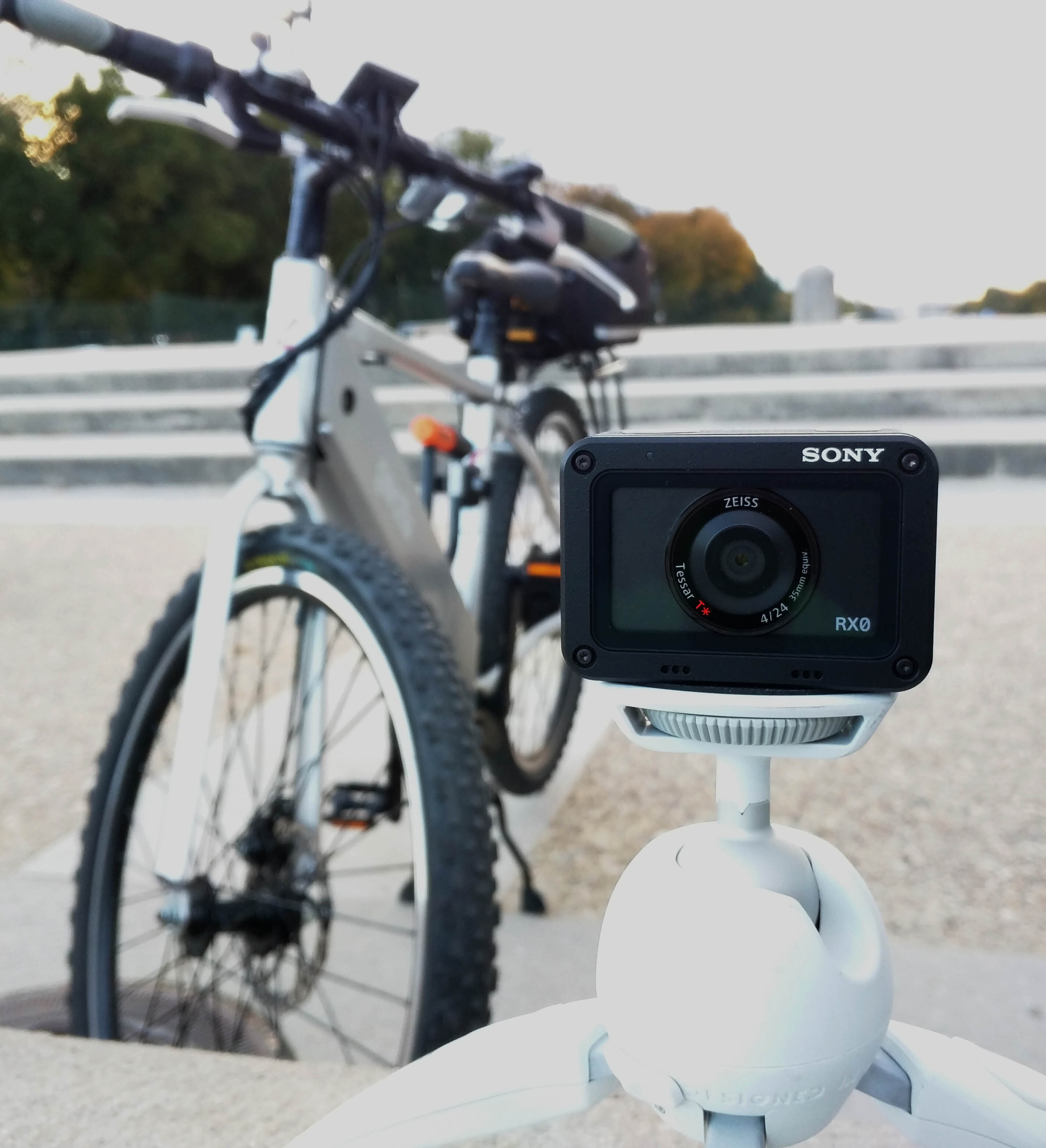
Complementing what’s said in the video, this post adds a few still pictures for further study, and written reflections. But let’s start out quickly summarizing the pros and cons of the Sony RX0:

PROS:

  • Freaking small – as in, ice cube (and just as waterproof)
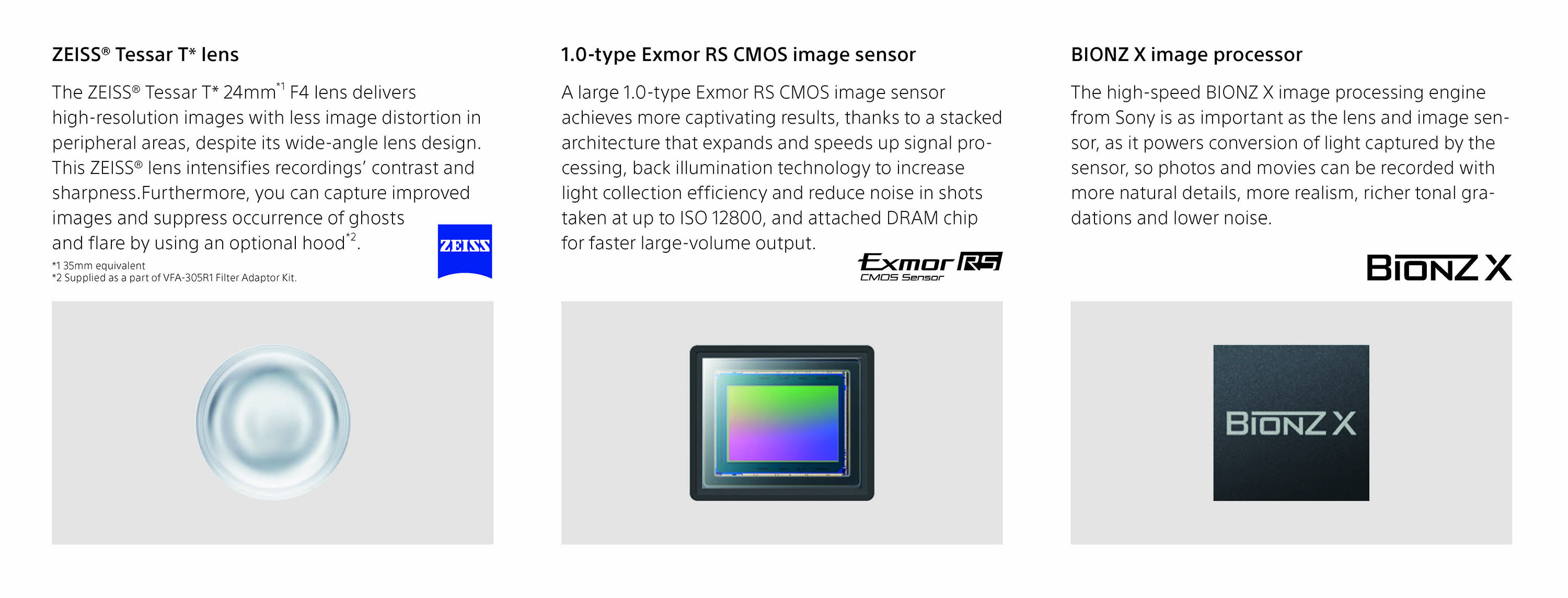
  • 1-inch sensor at ~3x crop, with mediocre light sensitivity (but much smaller than even APS-C/Super 35mm)
  • Better glass and narrower angle than any action cam by GoPro, etc. (say goodbye to fisheye)
  • Microphone jack with manual audio level control
  • S-Log2 S-Gamut picture profile
  • Clean UHD-4k output without pixel-binning/downscaling artifacts
  • $698 is cheap: reasonable folks can disagree, but Sony packed a lot of value into this tiny thing

CONS:

  • 1080p-only internal downsampled recording, with severe aliasing
  • Log profile requires minimum 1600 ISO gain, resulting in noisy image always at this sensor size
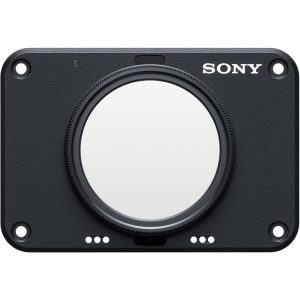
  • Laughable $150 ND filter adapter option (for solving the fixed f/4.0 aperture problem)
  • No optical (or even digital) image stabilization

Something I note in the video is that one key appeal of this product — like the affordable/modest/covert older siblings A6300 and A6500 — is its incorporation of a log picture profile. While Sony curiously leaves out its beleaguered S-Log3 here (lots of shooters actually prefer S-Log2 out of fear when seeing noise before REC.709 conversion), still, having S-Log2 in this tiny little box makes it a candidate for blending with footage from really any other professional cinema camera. That’s one of the great leveling virtues of log color: you stand a much better chance at being able to grade footage together from different cameras, especially when they’re from the same manufacturer. In the case of Sony, we’re talking about some of the worst color science in the industry, but what’s new? I make do with these compromises, and my a7S II has lately been my A-camera, until stubborn Sony finally puts that full-frame sensor into a proper cinema camera body without charging Venetian fortunes that are totally irrelevant to the vast majority of creators.

Problem is, like all other Sony cameras, S-Log2 starts at a minimum ISO gain of 1600. Bear in mind, 1600 on an a7S II looks a helluva lot different than on an RX0, because of the light-gathering capability of a full-frame sensor versus this tiny 1-inch sensor. Even though the RX0’s sensor size is a big selling point (and still bigger than legacy 2/3″ camcorder sensors), it’s laughably tiny compared to full-frame, or Super 35mm/APS-C, or even Micro Four Thirds…and that has the word “micro” in it! The result is, you get lots and lots of ugly digital noise at 1600 ISO. And since it only gets worse from there, S-Log on the RX0 is something of a catch-22.

I’ll still use only S-Log 2 in video mode, for matching the footage with other log shooters, but I anticipate lots of care exposing as best as possible, applying Denoiser plug-ins in post, and using ND filters.

Or maybe not that last part. Because Sony (typically and hilariously) charges a greedy, offensive $150 for this simple doodad that provides one single function that should cost ten or twenty bucks. Yet you need ND, badly. My video tests were toward the end of the day, under partly cloudy skies, in order to use S-Log2 without blowing out highlights at ISO 1600. To repeat from the Cons, you can’t control “aperture” on this thing because there isn’t one: just a fixed equivalent to f/4.0. And for anyone serious about making movies, ultra-high shutter speeds, to compensate for that, are not an option (though that won’t stop the majority of RX0 shooters from posting horrible-looking clips with strobe-y motion, just like GoPros).

But let’s say that you land right into that comfy spot of ideal lighting conditions, and want to shoot video. Ultimately, this thing delivers surprisingly well. Internal 1080p is exceptionally good, with one caveat common to such radically downsampling sensors: lots of aliasing/moiré. You’ll see that in particular at 7:06 in my video (the link goes straight to that timecode), when you focus yourself on the lines of the wall in the subway station. In the old days — e.g., Canon 5D Mark II — the solution was to avoid any wide shots with little patterns and lines, so you could consider this a vintage shooting limitation of the RX0.

Yet there’s one glorious way around the downsampling problem, and that is to … not downsample! The RX0’s HDMI port offers clean UHD-4k output without pixel binning, and in my video, you’ll see it looks spectacular. Add to that, you gain 4:2:2 color into any compatible recorder, such as the Atomos Shogun I used. I note that the usual self-proclaimed “pros” have comically whined about how nobody would possibly ever want to use the RX0 in tandem with a 4k recorder. Nonsense. I’m keeping this thing in my bag alongside bigger, more “professional” gear when I need another angle, either handing it over to a friend, or mounting it inconspicuously at a location otherwise inaccessible. I can run a long HDMI cable to the (extra) Shogun that I’m not using for anything else, or leave the Shogun hidden nearby. I can remotely control it all from my PlayMemories app on a tablet or smartphone, from my A-camera location. Besides all that, I can pocket the RX0 with me wherever I go, equipped to capture something unexpected with reasonably alright 1080p. So yeah, the Sony RX0 doesn’t somehow turn you into an amateur. It’s what you do with it that matters.

Speaking of which, still photography: while the gap is narrowing between dedicated cameras and smartphone cameras, this thing will still take a better picture than the best smartphone camera today. Here is a gallery of samples, unaltered, straight from the camera (click to enlarge):

But Sony notoriously skimps on optical image stabilization, especially when they slap that Zeiss label onto products (which is really just buying a license to use the Zeiss tradename). So while plenty of light buys you a high shutter speed, when things get darker, it’s nearly impossible to get a clear shot as the shutter speed dives down to compensate (or you pump up the noise with ISO gain). Thus in the last of these five samples, the blur was basically unavoidable. But the word “spycam” comes to mind, and the rather audacious notion — perhaps true — that this is the best camera in the world at such a miniature cube size. Nothing else comes close. That’s something.

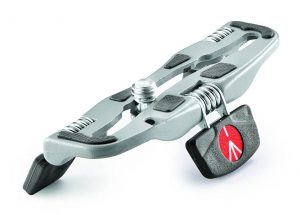
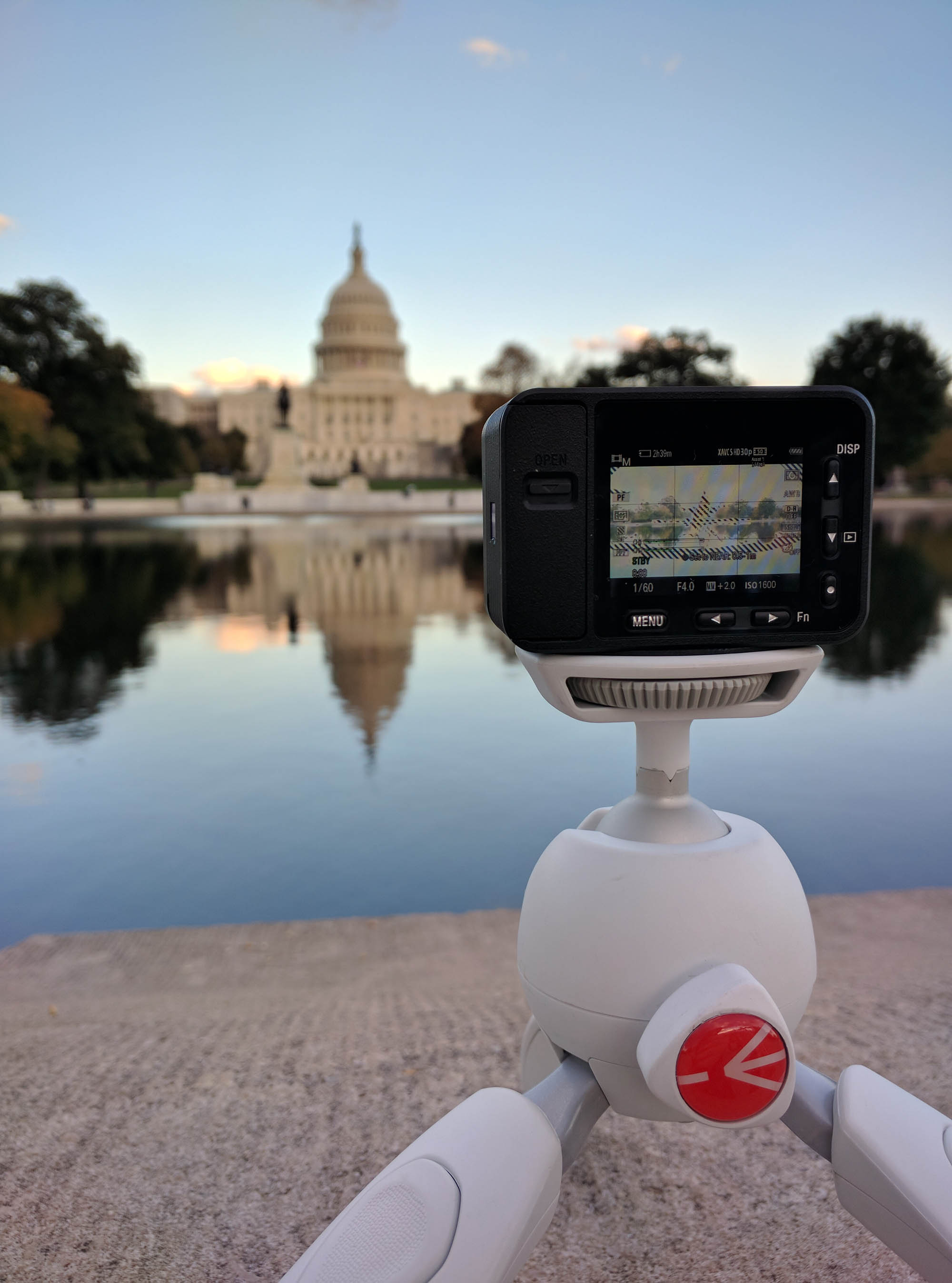
What’s really going to save your video footage is proper stabilization, ultimately, while respecting the compromises of what you can shoot, and what you can’t. You’ll be avoiding aliasing when you compose your shots, you’ll be adjusting your shutter speed if you absolutely must (avoiding fast motion), and you’ll be locking this thing down on sticks. I spent ten bucks on this Manfrotto “Pocket Support” making sure I never have the excuse that I left my tripod at home: now it’s bolted 24/7 onto the RX0.

Is this Blackmagic Pocket Cinema Camera-level revolutionary? Sorta! Certainly, this reminds me how long it’s been since Blackmagic changed the world that way, and credit to Sony for taking the risk. Highly recommended.

The Sony RX0 is available from Amazon at amzn.to/2zGU2KG, from Adorama at focuspull.in/sonyRX0 and from B&H at focuspull.in/sonyrx0 for $698.

October 27, 2017 FocusPulling Original, FocusPulling Original Video rx0 Leave a Comment
04 October 2017

Rethinking Your Mouse & Keyboard: Review of the RollerMouse

Written by Paul Moon

Independent filmmakers often neglect to remember that our vast majority of time isn’t spent on set, behind cameras, and working with people.  Instead, we’re sitting in front of computers for the longest stretches of time:  video editing, marketing/promotion, correspondence, and tons more.  If there’s anything to make that experience less painful and more productive, it may actually amount to an investment in creative filmmaking.

ShuttlePRO v2 next to Contour Design RollerMouse

For video editing, the most important hardware control you can add to Premiere, Avid, Final Cut, Vegas, DaVinci, etc. is a shuttle dial with customizable buttons. The best and most affordable on the market are from Contour Design, and I reviewed their ShuttlePRO v2 here a few months ago, now pictured above paired with their innovative mouse alternative called RollerMouse.

The creators of this product, Contour Design, are offering readers here an exclusive 20% discount off any purchase from their webstore using coupon code FP20 at: www.contourdesign.com/store

It’s not just about medical ergonomics, but speed and productivity too:  we ought to move our hands around as little as possible.  When you think of any workstation, the default posture/hand position is this:  keyboard at the middle; mouse to the right; our left and right hands on the keyboard; and if you’ve got a shuttle dial, it’s over to the left.  RollerMouse begins with the idea that maybe you can keep your hands at the keyboard, without needing to move over to the mouse.

Does it work?  Depends!  Like anything in life, you can’t go wrong having more options, tailored to the task.  After giving RollerMouse an earnest try over the past few months, for me, it’s a work-in-progress.

Let’s start with the nuts and bolts:  you’ll see in the picture at left how there’s a horizontal bar positioned just above the pleather wrist rest of the RollerMouse.  When you move that grippy rubber sleeve on the bar left and right, it moves your pointer left and right; and when you rotate it up or down (sort of like a gigantic, clickless scroll wheel on a mouse), it moves your pointer up and down.  When you tap down on the whole bar, you get a left-click.  It all feels really weird at first.

Before exploring the rest, let’s get real:  this is a wrist rest on steroids.  But that feature can’t be overlooked.  As an aside, one pet peeve of mine (and bewilderment at the accessories market) is how there are almost no good keyboard wrist rests.  About a decade ago, Microsoft was really nailing it with their Comfort line of keyboards that had integrated wrist pads, with just the right balance between cushiony pleather texture, and rigid support.  Today, we either get firm plastic pads (e.g., the one that came with my pictured Corsair K70), or smushy memory gel accessories to slip under our keyboards.  But when this RollerMouse arrived, my years-long quest ended.  This is the mother of all keyboard wrist rests, striking just the right balance.

Below the RollerMouse bar is an array of buttons that go beyond the usual left-click/right-click paradigm of a mouse.  Although the big left button does perform a left-click, and the big right button a right-click, the middle one sends a double-click with one tap.  And the two slim ones above these big ones:  they copy and paste in one click.  I think the idea here is, since your fingers won’t be perfectly positioned to hit them up, as they would be at a dedicated mouse, this is a necessary compromise to add buttons that require less strain.  It’s all factored into the benefit that you’ll be able to keep your hands at the keyboard, away from the mouse…but not always.

The truth is, I’m still stuck in my old ways and struggling to find middle ground.  We start from a good place, though:  besides the financial investment, you’d have nothing to lose by having it there:  to my surprise, I’ve never once gotten any accidental cursor movement or pointer click during normal keyboard usage because of the RollerMouse — and it operates simultaneously with your mouse.  You won’t be getting rid of your mouse.  There are some things you can do better and more precisely that old(ish) fashioned way.  There is definitely something more tactile about pushing down on a mouse button, with force, and dragging something into a precise spot applying pressure (and relative movement).  This capability isn’t lacking on the RollerMouse, it’s just less of a thing.  So, taking one Adobe Premiere task as an example, I’ll prefer a mouse if I’m dragging the handles on an image resizing operation, to get the precise alignment inside a video frame where one bleeding pixel can ruin a shot.  But, to quickly move my cursor to another panel where I know I’ll be using my keyboard next, I’m better off keeping my hands at the keyboard and using the RollerMouse.

Ever heard of the Kuleshov Effect?  I was teaching it to my film school students a couple of weeks ago, as an editing principle from early film theory:  that the meaning of something changes based on what you see before it, and after it.  And I really think of the RollerMouse that way:  if you’ve got a pointer operation consecutive with using the keys on your keyboard, you’re probably better off using the RollerMouse.  But if you’ve got lots of pointer-focused clicking to do in sequence, and with precision, that trip over to your mouse is worth it.

Even so, the RollerMouse gives you a few extra features to get you closer to mouse simulation.  In the close-up picture at right, you’ll see how the cursor speed (“sensitivity”) can be adjusted in five steps.  So, if you want to keep at your RollerMouse but perform that precise movement I was writing about earlier, this helps.  In fact, it’s actually found on some mice, too:  my Corsair Raptor M45 has it, too, with three levels of sensitivity that can be moved up or down using a toggle just under the scroll wheel.

Speaking of scroll wheels, the RollerMouse has that also, pictured at right.  Notably, it doesn’t have a notched travel to it, like most mice, but it doesn’t freely fly either.  I might have preferred that mouse norm of clunking up and down in clear bumps, but then again, now I have a choice between the two types of scroll action, between the RollerMouse and mouse.

The truth is, video editors aren’t the primary market for Contour Design when it comes to this RollerMouse, even though they own the market for jog shuttles.  Naturally, word processing benefits the most from keeping hands nearest the keys.  And those rainbow-colored keyboards for Avid editors of yore simply aren’t a ubiquitous reality anymore:  we’ve moved on from that, and video editing today is fundamentally a mouse-based practice.  Sorry, Walter Murch.

In a perfect world, there would be a background task (like the Contour Shuttle Device Configuration tool tray item) letting us customize the RollerMouse within Premiere, for example:  since I’m constantly scrolling left and right on my timeline, it would be killer to have a mode on the RollerMouse where the bar’s horizontally-focused action only controls the timeline/time marker location, and the matrix of five buttons also could map to Premiere shortcuts.

But just as it is, the RollerMouse doesn’t require configuration or drivers:  you hook it up via USB, and you’re ready to roll.  It’s solidly constructed, with a metal base as seen at left, grippy feet, and great customer support.  The killer question for you is its value for the dollar:  at pricing that ranges from $200 to almost $300, it’s a big investment if you’re not sure.  Contour Design does have a generous try-out policy, while another thing to consider will take us back to the start of this review:  if we spend the majority of our time, even as artists, sitting in front of a computer, even this small impact on ergonomics and productivity can add a priceless benefit over the long term.  I’m sold.

Keep an eye out next for their brand new product that brings everything full-circle, the Unimouse.  I’ll try it and test here soon.

October 4, 2017 FocusPulling Original contour design, rollermouse Leave a Comment
← Older posts
Newer posts →

Recent Posts

  • PGYTECH OneGo 2 Backpack Review
  • DJI Osmo 360 | touring Washington DC
  • PGYTECH OneMo 2: this might be your ultimate backpack
  • DJI RS 3: Essential accessories for the best all-around gimbal stabilizer
15,288Fans
2,939Followers
51Followers
333Followers
6,170Subscribers
588Followers
54Subscribers
722Subscribers

Subscribe to Receive New Posts (Low-Traffic)

Check your inbox or spam folder to confirm your subscription.

START HERE TO GET YOUR GEAR AT THE B&H STORE

B&H Search Banner Small
B&H Photo - Video - Pro Audio

Advertisement
  • RECENT REVIEWS AT FOCUSPULLING

The Latest from Your RigShots

Follow FocusPulling (.com)'s board RigShots on Pinterest.
© Copyright 2015 by Zen Violence Films LLC, all rights reserved. To read the site privacy policy and ethics statement, click here.